 Vault Help
Vault for Chrome
The Vault extension is where you set up your account, manage your passwords and share them. It also fills logins on websites.
The screenshots show a made-up demo vault for “Acme”; the test card number 4111 1111 1111 1111 and all the passwords are fake.
Installing the extension
On company computers your administrator installs Vault for you through Chrome's settings, and it updates itself. Look for the Vault icon in Chrome's toolbar.
- If you can't see it, click the puzzle-piece icon in the toolbar and pin Vault.
- If Vault isn't in that list either, install it from the Chrome Web Store (below), or ask your administrator.
- To get an update straight away, open
chrome://extensions, turn on Developer mode and click Update.
On any other computer, install Vault from the Chrome Web Store: click Add to Chrome, then pin it with the puzzle-piece icon. Check that the extension is offered by your organisation; its ID is gonhlpebeeidmejnmimbghajjaignofg. The store keeps it up to date.
Setting up
You need the setup link from your invitation. It works once and expires after 7 days; if it has expired, ask your administrator to resend it.
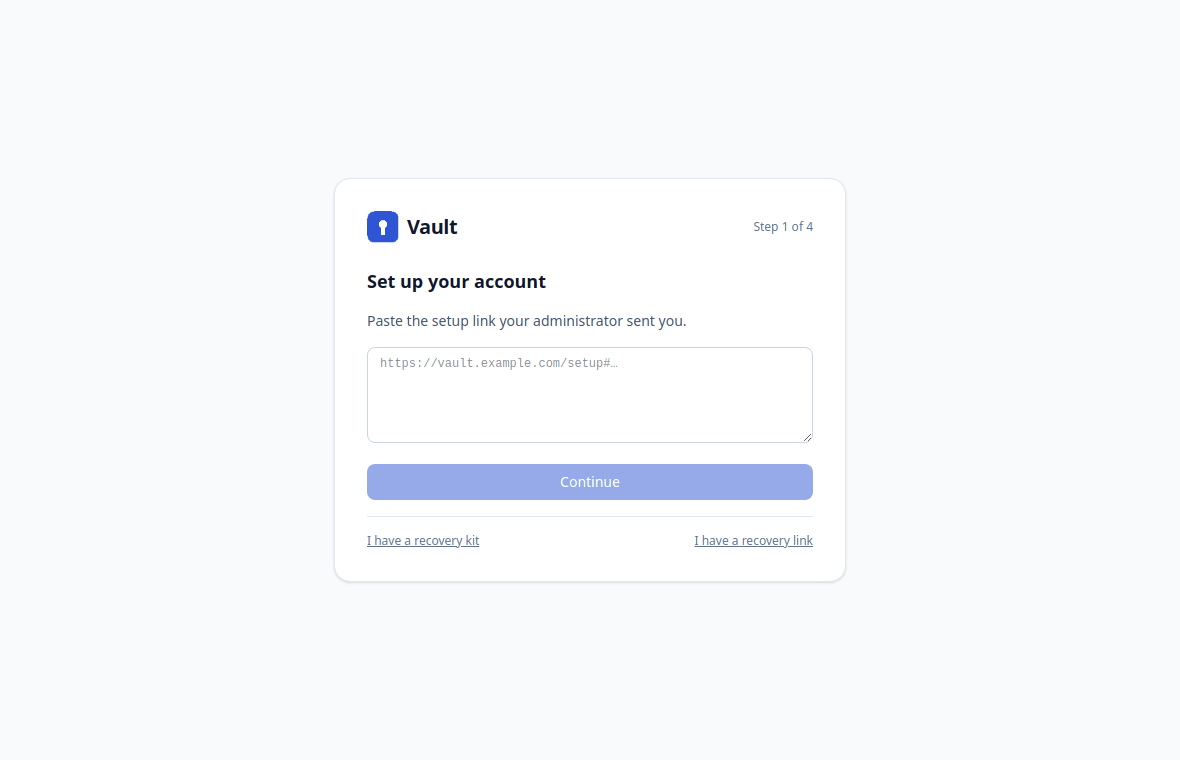
- Click the Vault icon and choose Set up. The Set up your account page opens.
- Paste your setup link and continue. Vault shows your name, email, the server and the server key fingerprint. If your administrator gave you a fingerprint, check that it matches.
- Choose a passphrase of at least 12 characters, and type it twice. A few unrelated words make a good passphrase. Don't reuse a password from somewhere else.
- Save your recovery kit. Vault downloads a file with your key, protected by your passphrase. Keep a copy somewhere safe, away from this computer (for example in your company's document storage or on a USB stick in a drawer).
- You're all set. Unlock Vault with your passphrase.
Next, Vault asks you to set up account recovery. Click Set up: this stores a copy of your key that only your organisation's recovery key can open, so an administrator can help you if you forget your passphrase. Vault can't be used until this is done.
If your organisation requires two-factor authentication, Vault then asks you to set it up. See Two-factor authentication.
Unlocking and locking
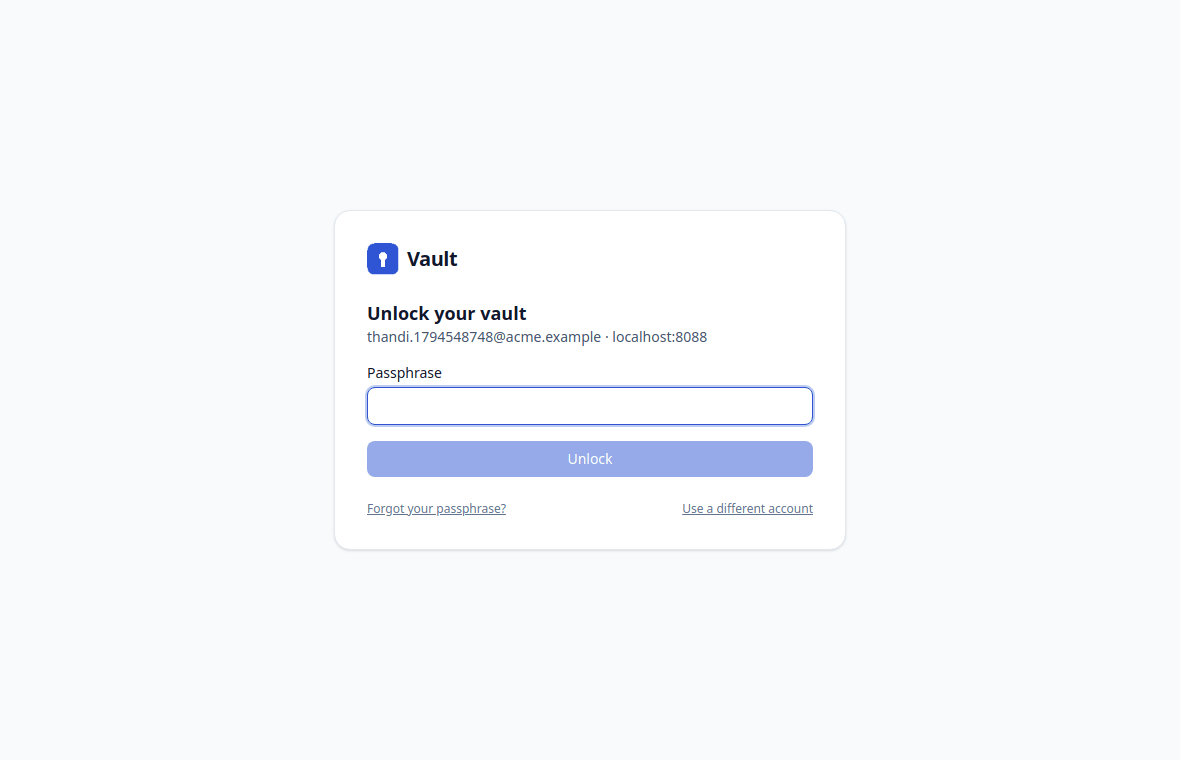
- Unlock: click the Vault icon, choose Unlock, and enter your passphrase on the Unlock your vault page. With two-factor authentication on, Vault then asks for the 6-digit code from your authenticator app (at most every 30 days on a browser you told it to remember).
- Lock: click Lock at the top right of the vault page, or the lock icon in the popup.
- Automatic locking: Vault locks itself after a while without use (your administrator sets how long; usually 8 hours), always after 12 hours, and when Chrome closes. Using the popup, the vault page or autofill counts as use.
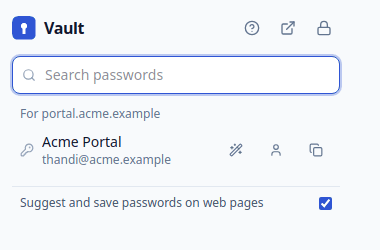
The toolbar popup
Click the Vault icon in Chrome's toolbar for quick access:
- Suggested passwords for the website you're on, with buttons to fill the login, copy the username or copy the password.
- Search passwords to find anything else.
- The switch Suggest and save passwords on web pages turns in-page autofill on or off.
- Open vault (the arrow icon) opens the full vault page; the lock icon locks Vault.
The vault page
The vault page has three parts:
- Left: views (All passwords, Favourites, Owned by me, Shared with me), your password groups, User groups, and for administrators the Administration pages.
- Middle: the list, with name, username, password (hidden), URL and the password group it's in. Use Search passwords at the top to search names, usernames, URLs and banks.
- Right: the details of the password you clicked.
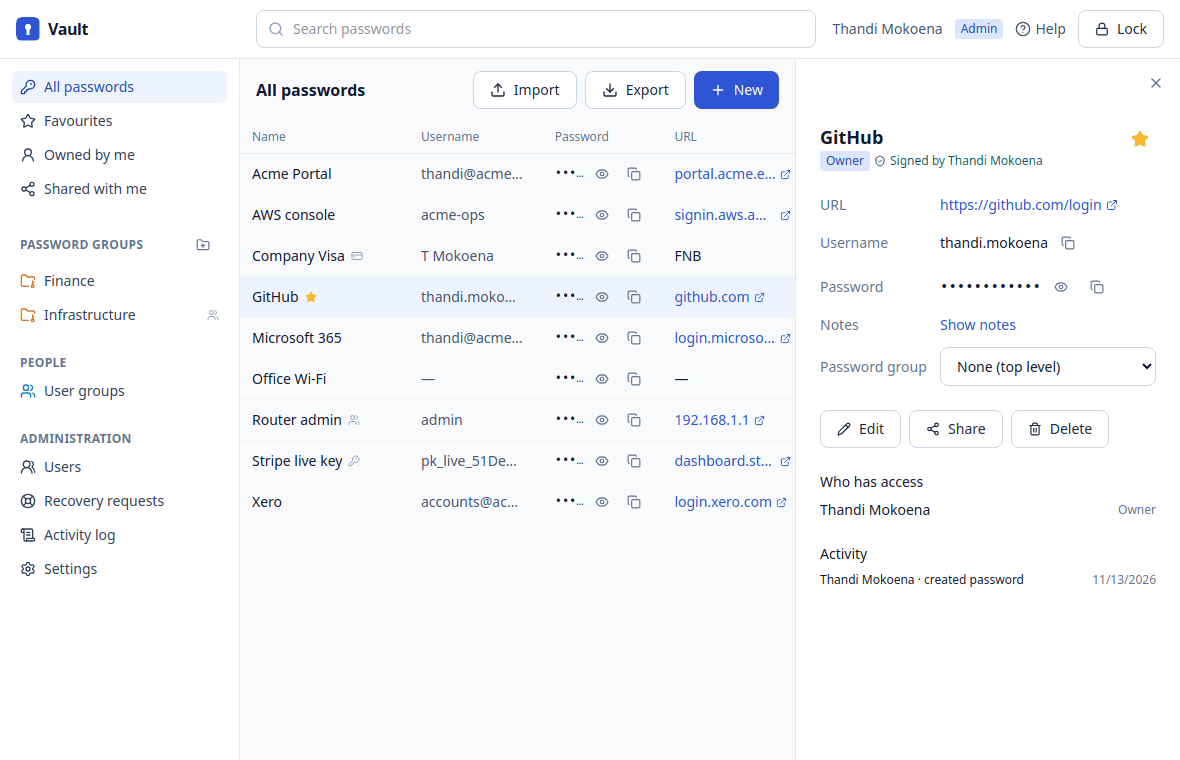
In the list, click a username or the hidden password to copy it. The eye icon shows the password for 30 seconds. Small icons mark favourites (★), passwords shared with you, email accounts, API keys and cards.
Adding passwords, email accounts, API keys and cards
- Click New above the list.
- Choose Login, Email account, API key or Card at the top of the form.
- Fill in the fields and click Save.
Logins
Name, URL, username, password and notes. The wand icon opens the password generator: choose the length and character types, and click Use this password. A strength bar shows how strong the password is. Put the website's address in URL so Vault can suggest and fill it there.
Email accounts
Name, email address, password, webmail URL, and the incoming (IMAP or POP) and outgoing (SMTP) servers, for example imap.example.com, port 993, for setting up a mail app. With a webmail URL, Vault suggests and fills the account on that page, like a login.
API keys
Name, URL or service, key ID or username, the API key, and an optional Password if the key comes with one. Both secrets can be generated with the wand icon.
Cards
Name, bank or issuer, cardholder name, card number, expiry date (MM/YY), CVV, PIN and account number (for a card linked to a bank account). Card numbers are shown as NNNN NNNN NNNN NNNN.
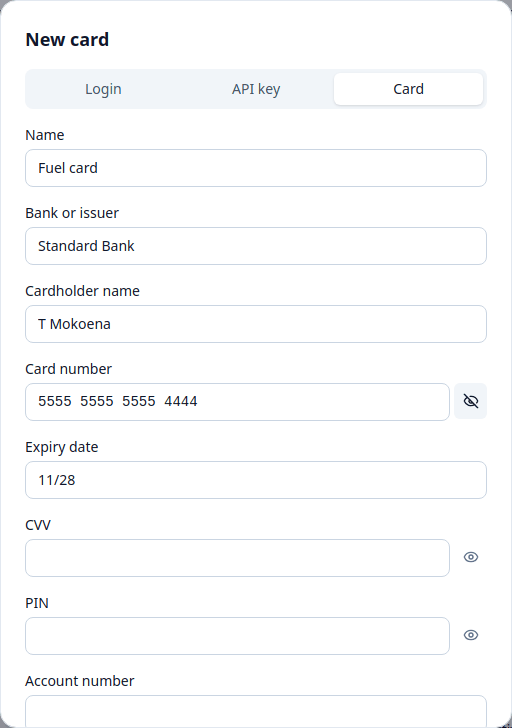
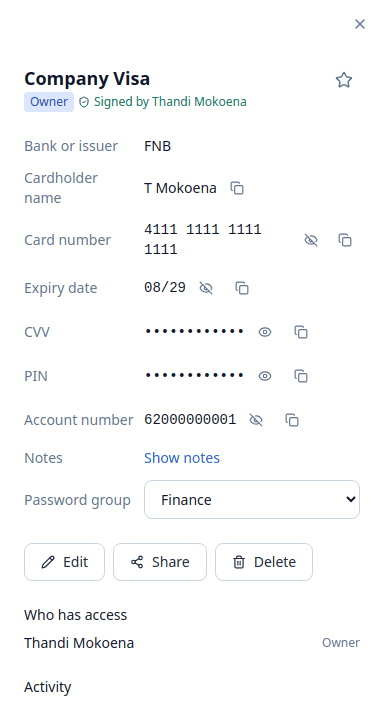
Everything you type, including names, URLs and usernames, is encrypted on your computer before it's saved. Cards and API keys are never filled into websites.
If you're looking at a password group when you click New, the new entry goes into that group and is shared with its members.
Viewing and copying
Click an entry to open its details on the right.
- Each secret (password, API key, card number, CVV, PIN) has its own show (eye) and copy buttons. Showing one doesn't show the others.
- Copied secrets are cleared from the clipboard after 30 seconds, unless you've copied something else since. Card numbers are copied as digits only, which is what payment forms expect.
- Show notes shows the encrypted notes.
- The star at the top adds it to your Favourites.
- Signed by … shows who last changed it. Vault checks that signature every time; if the check fails, Vault won't show, copy or fill it.
- Who has access lists the people and groups it's shared with. Owners also see an Activity list (who viewed, copied or changed it).
Editing and deleting
- Edit opens the form with the current values (you need Can edit or Owner). Saving re-encrypts the changes for everyone who has access.
- Delete removes it for everyone it's shared with (owners only). This can't be undone.
- To move it, choose another Password group in the details. Moving into a shared group gives that group's members access, so Vault asks you to confirm.
Password groups
Password groups are folders. Under Password groups on the left, click + (New password group) to create one. Point at a group to see its buttons to rename, share or delete it.
Sharing a password group shares every password in it that you own, and passwords added to it later are shared automatically.
Sharing
- Open the password and click Share (owners only).
- Type a colleague's name or a user group in Add people or groups….
- Choose what each can do: Can read, Can edit or Owner. At least one person or group must stay owner.
- Click Save. Vault encrypts a copy for each new person, with their own key, before anything is sent.
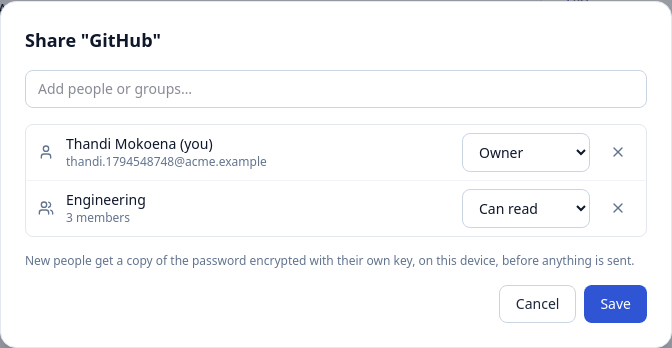
Removing someone takes their copy away immediately. If they might have seen the password, change it as well.
User groups (left, under People) are teams. Sharing with a user group shares with everyone in it, including people added later. Group managers can add and remove members.
Autofill on websites
When you click into a login form, Vault shows the logins saved for that website under the field, and a small Vault icon inside the field. Click a login to fill the username and password.
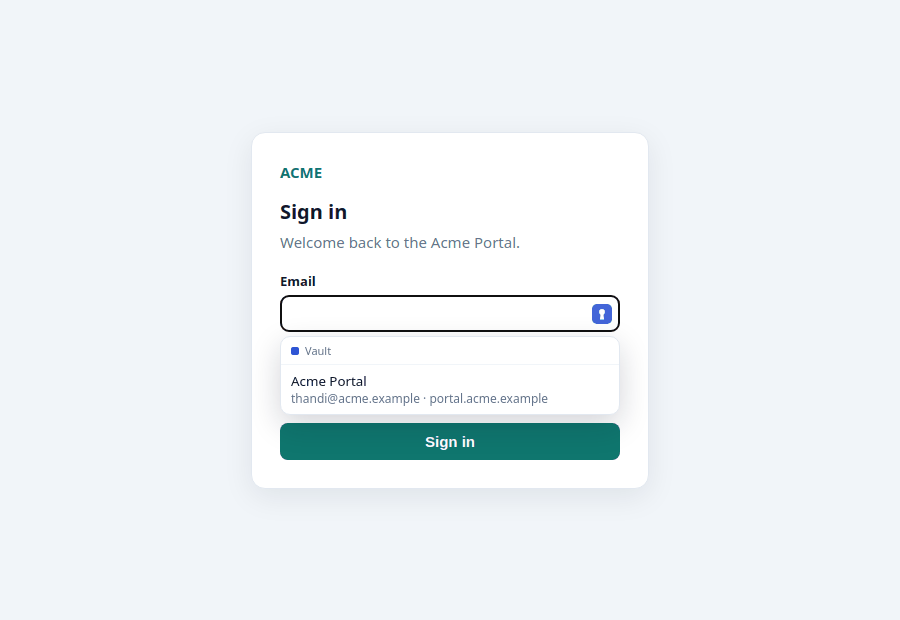
- Vault only fills a login on the website it was saved for (and its subdomains), and never fills a password saved for
httpsinto a plainhttppage. - It only reacts to real login fields, not search boxes, newsletter fields or card forms.
- When Vault is locked, it offers to unlock instead.
- You can also fill from the popup: open the page, click the Vault icon and use the fill button next to a suggestion.
To turn autofill off, use the switch in the popup, or Autofill on websites in your account. If Chrome blocks Vault on websites, the vault page shows a banner with an Allow button.
Saving logins as you sign in
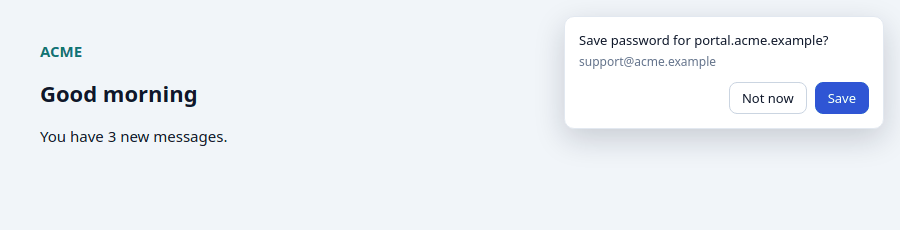
When you sign in to a website with a password Vault doesn't know, Vault offers Save password for …? at the top right of the page. If you changed a saved password, it offers Update the saved password?. Click Save or Update, or Not now.
Importing from KeePass
- On the vault page, click Import.
- Choose the KeePass file (
.kdbx), enter its master password (and key file if it has one). - Choose which groups to import, where to put them, and what to do with entries that already exist (update, leave, or import as another password).
- Keep the page open until it finishes.
KeePass groups become password groups. Fields Vault has no place for are added to the notes. Cards and API keys exported from Vault come back as cards and API keys.
Exporting
Click Export, choose KeePass (.kdbx) (protected with a file password you choose) or CSV (not protected), and confirm with your Vault passphrase. The export contains every password you can see, decrypted.
Keep an exported file somewhere safe and delete it when you no longer need it. A CSV file is readable by anyone who gets it.
Your account
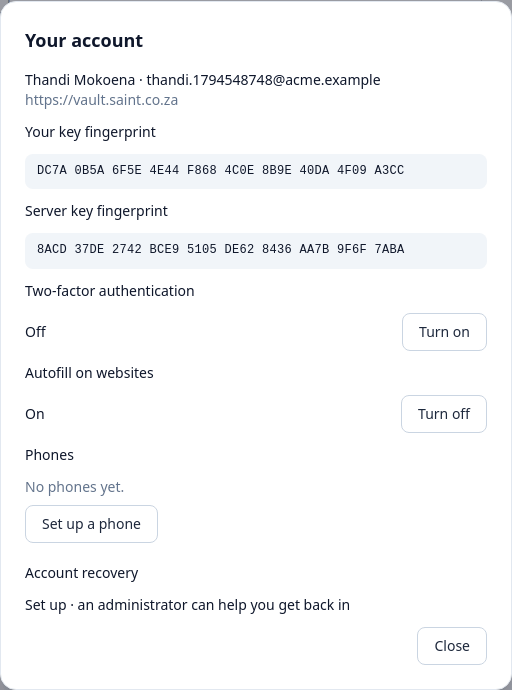
Click your name at the top right of the vault page to open Your account:
- Your key fingerprint and the server key fingerprint, to compare with colleagues or your administrator if you ever need to check them.
- Two-factor authentication: turn it on or off.
- Autofill on websites: turn autofill on or off, and allow Vault on websites if Chrome blocks it.
- Phones: set up a phone, and see or remove your phones.
- Account recovery: whether your recovery backup is in place.
Two-factor authentication
With two-factor authentication, unlocking also needs a 6-digit code from an authenticator app on your phone (for example Google Authenticator, Microsoft Authenticator or 1Password).
- In your account, click Turn on next to Two-factor authentication.
- Scan the QR code with your authenticator app (or Can't scan? Enter this key instead).
- Enter the code the app shows.
When Vault asks for a code, tick Don't ask again on this browser for 30 days if this is your own computer. If you lose your authenticator, an administrator can reset it.
Phones
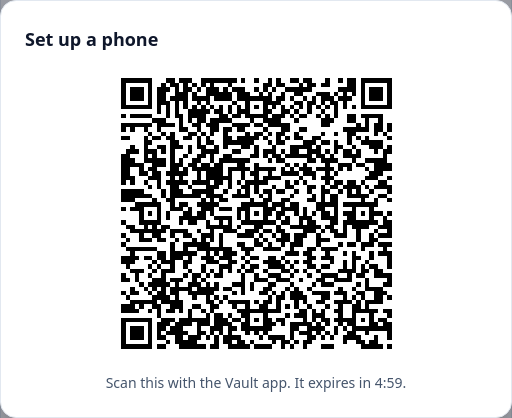
To use Vault on your Android phone, open your account and click Set up a phone. Vault shows a QR code for 5 minutes; scan it with the Vault app. Full steps are in the Android help.
Your phones are listed under Phones. Click Remove next to a lost or old phone: it can no longer sign in, and it deletes everything Vault kept on it as soon as it connects.
Another browser or computer
To use Vault in another Chrome (another computer, or a new Chrome profile), you need your recovery kit and your passphrase:
- Click the Vault icon, choose Set up, then I have a recovery kit.
- Enter the server address (for example
vault.saint.co.za), check the fingerprint, choose your kit file and enter your passphrase.
On the unlock page, Use a different account removes the account from this browser. You'll need your recovery kit to set it up again.
Forgot your passphrase
Nobody can reset your passphrase, but an administrator can help you recover your account:
- On the unlock page, click Forgot your passphrase? and ask for a recovery email. (If email isn't set up, your administrator gives you the recovery link.)
- Paste the recovery link from the email and check the server key fingerprint.
- Choose a new passphrase. Vault shows a code: read it out to your administrator, who compares it on their screen and approves the request.
- Keep the page open (it checks automatically), or come back later. Once approved, enter your new passphrase.
- Download your new recovery kit (the old one still opens with your old passphrase, so destroy it), then unlock.
Your passwords are all still there; only your passphrase changes. A recovery link expires after a day and a request after 3 days.
Phones you've set up keep their own copy of your key, with the passphrase they were set up with. If you've forgotten that one too, recover on the phone as well (Android help).
Troubleshooting
- No suggestions appear on a website.
- Check that autofill is on in the popup, that the login's URL matches the website (same domain, and https), and that Vault is unlocked. Vault only reacts to real login fields.
- “The passphrase is incorrect.”
- Check Caps Lock and the keyboard layout. If you've really forgotten it, use Forgot your passphrase?.
- “Set up account recovery first.”
- Click Set up on the banner. If it says it's waiting for an administrator, the organisation recovery key doesn't exist yet: ask your administrator.
- Vault offers a password everywhere but won't fill it (“saved before Vault signed passwords”).
- Vault only fills passwords whose details are signed. Older passwords are signed when someone who can edit them opens Vault in Chrome. Until then you can still copy them.
- A password says “Failed signature check”.
- Its details aren't signed by the person who last changed it, so they may have been tampered with. Vault won't show, copy or fill it. Tell your administrator.
- Vault keeps asking me to unlock.
- Your organisation's inactivity limit has passed, or Chrome was closed. Ask your administrator if the limit seems too short.
- The setup link doesn't work.
- It works once and expires after 7 days. Ask your administrator to resend the invitation.