 Vault Help
Administering Vault
Administrators manage people and settings from the Administration section of the extension's vault page. Administrators can't read anyone's passwords: those stay encrypted for the people they're shared with.
First steps
- Create the organisation recovery key (Administration → Settings → Account recovery). Nobody can use Vault until it exists. See The organisation recovery key.
- Set your rules: two-factor authentication, how long sessions last, and how long phones work offline.
- Invite people from Administration → Users.
- Install the extension on their computers, and point them to the download page for the phone app. See Installing Vault.
Users
Administration → Users lists everyone with their role, status (Invited, Active or Disabled), whether account recovery is set up, two-factor authentication, and their last login.
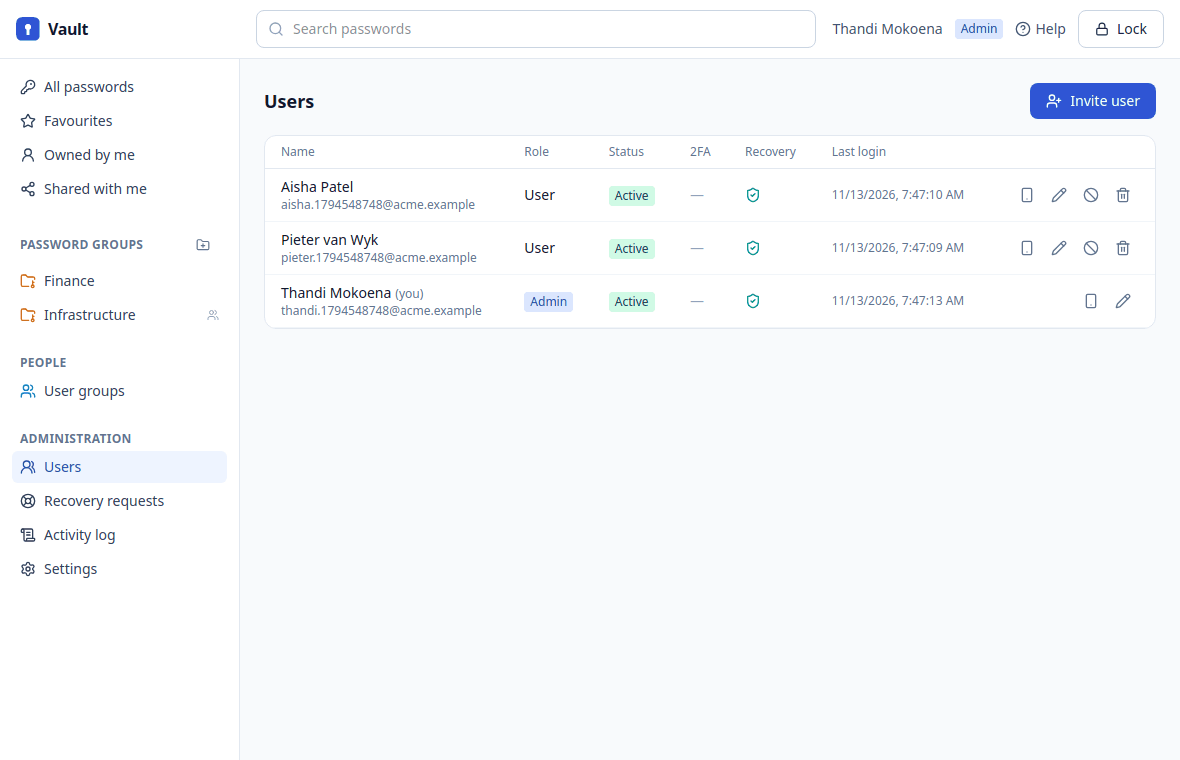
Inviting someone
- Click Invite user, enter their email, first and last name, and choose User or Administrator.
- Vault emails them a setup link. If email isn't configured, Vault shows you the link: send it to them yourself, ideally not by plain email.
The link works once and expires after 7 days. Use the resend button next to them to send a new one.
Per-person actions
- Edit: name and role.
- Reset two-factor: for someone who lost their authenticator. They set it up again at their next login.
- Phones: see their phones and remove one (for a lost phone).
- Disable: they can't log in, their sessions end at once, and their phones wipe themselves when they next connect. Their access stays in place for when you enable them again.
- Delete: see When someone leaves.
When someone leaves
- Disable them straight away. That ends their sessions and wipes their phones.
- When you're ready, Delete them. If they're the only owner of any passwords, or the only manager of a user group, Vault asks who takes over each one. Passwords only they could see are deleted with them.
- Change the passwords they knew. Removing someone stops them getting new copies, but they may have seen or copied passwords before.
Approving account recovery
When someone forgets their passphrase, they request recovery from the extension or the app, and every administrator gets an email. The request appears under Administration → Recovery requests.
- Click Review.
- Check it's really them: contact them another way (in person, or by phone on a number you already know) and ask them to read out the code on their screen. It must match the code Vault shows you.
- Choose the organisation recovery key file and enter its passphrase. These stay in your browser.
- Click Approve (or Reject).
Their device then finishes by itself, and they choose a new passphrase. Another administrator must approve your own request. Requests expire after 3 days.
Never approve a request you haven't confirmed in person or by a phone call you made. Approval gives the requester the person's whole vault.
User groups
User groups (left, under People) are teams that passwords can be shared with. Administrators create and delete them; group managers add and remove members. Adding someone gives them every password shared with the group: Vault encrypts a copy for them in your browser, so you can only add members to a group whose passwords you can read.
Settings
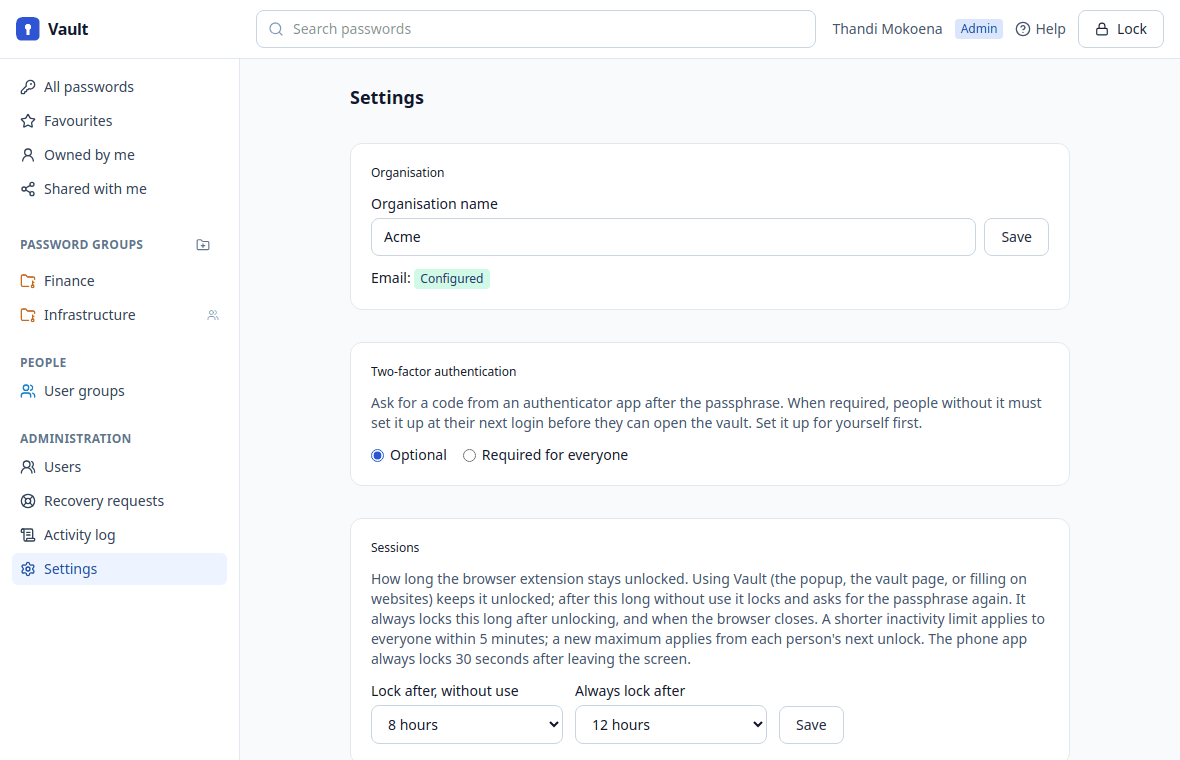
Administration → Settings:
| Setting | What it does |
|---|---|
| Organisation | Your organisation's name. Also shows whether email is configured (otherwise setup and recovery links are shown to you instead). |
| Two-factor authentication | Optional, or Required for everyone: people without it must set it up at their next login. Set it up for yourself first. |
| Sessions | Lock after, without use (default 8 hours) and Always lock after (default 12 hours). The extension locks after these. A shorter limit reaches everyone within 5 minutes; a new maximum applies from each person's next unlock. The phone app always locks 30 seconds after leaving the screen. |
| Phones | Days without syncing (default 30, 1–365): a phone that hasn't synced for this long locks until it connects. Shorter is safer for lost phones; longer suits people who travel. |
| Account recovery | Required for everyone, and can't be turned off. Holds the organisation recovery key. |
The organisation recovery key
Everyone's key is backed up, encrypted to the organisation recovery key, so an administrator can approve a recovery. The key is created in your browser; only its public part is stored on the server.
- In Settings → Account recovery, click Generate key….
- Choose a strong passphrase for it.
- Download recovery key. This is the only copy: it can't be downloaded again.
- Click Save account recovery.
Keep the key file and its passphrase offline, ideally two copies in separate safe places (for example two sealed envelopes in different safes). Anyone with both can approve recoveries; without them nobody can be recovered.
Replace key… deletes every existing backup: everyone has to set up recovery again before they can use Vault. Only replace it if the old key is lost or exposed.
Activity log
Administration → Activity log records logins (including failed ones and two-factor codes), passwords viewed, copied, filled or changed (with the phone, for views made in the app), sharing, administrative changes and recovery decisions. Password names are encrypted, so the log shows names only for passwords you can see yourself.
Phones
- People set up phones themselves from the extension (Your account → Phones → Set up a phone).
- To remove someone's lost phone: Administration → Users → the phone icon next to them → Remove. It can't sign in any more and wipes itself when it connects.
- Disabling or deleting a user wipes all their phones the same way.
- The phone app isn't on Google Play. People install it from the download page, and it updates itself from your Vault site.
Installing Vault for your users
Chrome extension
Vault is installed through Chrome's policy, from your own Vault site, and updates itself. In your device management (Google Admin, Intune, Group Policy) add this to ExtensionInstallForcelist:
acgimednggfcbcccalbdbbpcenjdjnmh;https://vault.saint.co.za/extension/updates.xml
Chrome then installs Vault on the next policy refresh, with the permissions it needs and without asking each user.
Android app
Send people the download page, https://vault.saint.co.za/download/, and the install steps. Samsung phones need Auto Blocker turned off while installing.