 Vault Help
Vault for Android
The Vault app keeps an encrypted copy of your passwords on your phone, so you can use them even without a data connection, and fills logins in apps and browsers.
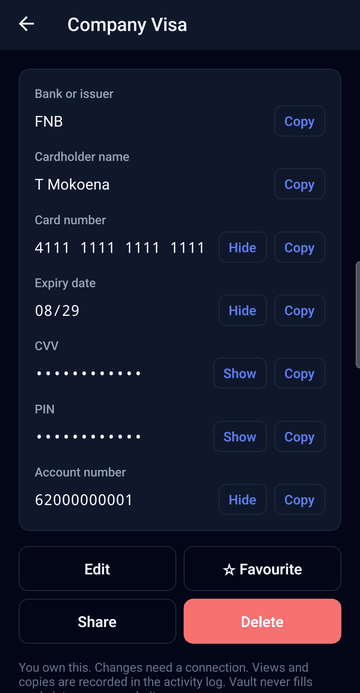
The screenshots show a made-up demo vault for “Acme”; the test card number 4111 1111 1111 1111 and all the passwords are fake.
Set up Vault in the Chrome extension first. The app is set up from the extension, and some things (password groups, KeePass import and export, administration) are only in the extension.
A tour of the app
Open a password group, show a card number, start a new card and look through Settings. The sections below explain each step.
Setting up the app starts in the Chrome extension: see the short video under Phones in the Chrome help.
Installing the app
Vault isn't on Google Play: your organisation publishes it on its own Vault site.
- On a Samsung phone, first turn off Auto Blocker (Settings → Security and privacy → Auto Blocker). It blocks apps from outside the store.
- On your phone, open the download page (for example
https://vault.saint.co.za/download/) and tap Download Vault. - Open the downloaded file. Android asks to allow your browser to install apps: allow it, go back, and tap Install.
- Turn Auto Blocker back on.
After that, Vault updates itself (see Updating the app).
Setting up the app
Open Vault. On Set up Vault on this phone, choose one of three ways.
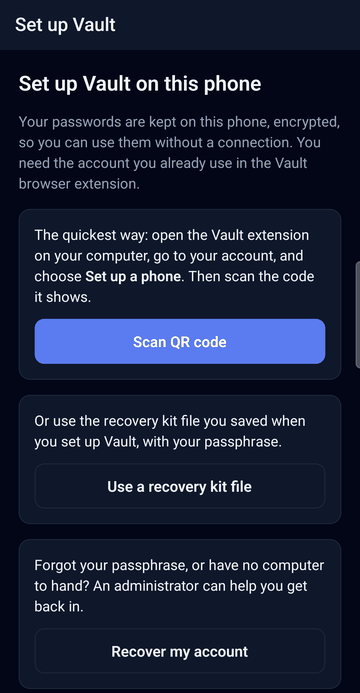
With a QR code from the extension (easiest)
- On your computer, open the Vault extension's vault page, click your name at the top right, and under Phones click Set up a phone. A QR code appears for 5 minutes.
- On the phone, tap Scan QR code and allow the camera.
- Point the camera at the QR code. Your key travels encrypted, and only your phone can open it.
- Enter your Vault passphrase (the same one as in the extension), and your two-factor code if asked.
With your recovery kit
Tap Use a recovery kit file, enter the server address (for example vault.saint.co.za), check the server key fingerprint, choose your recovery kit file and enter your passphrase.
By recovering your account
If you've forgotten your passphrase, or have no computer to hand, tap Recover my account. See Forgot your passphrase.
Vault then downloads your passwords. The first time this takes a moment; after that it only fetches what changed. The phone appears in the extension under Phones.
Unlocking
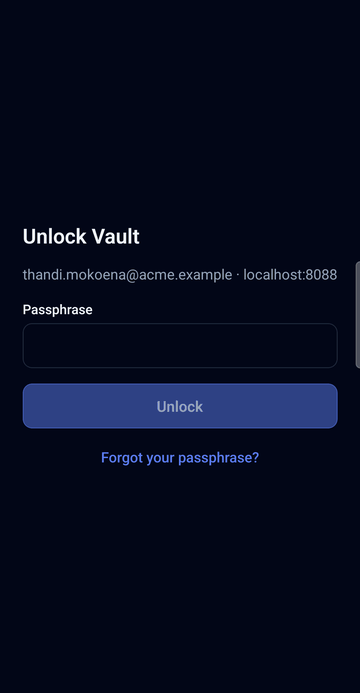
- Enter your passphrase and tap Unlock. This works without a connection.
- Fingerprint or face: in Settings, turn on Unlock with fingerprint and confirm with your passphrase. Then use Use fingerprint on the unlock screen. Adding a new fingerprint to the phone switches it off, for safety.
- Vault locks 30 seconds after you leave it, and when you tap Lock now in Settings.
- While Vault is unlocked, screenshots and screen recordings of it are blocked.
Without a connection
Your passwords are kept on the phone in an encrypted database that only your passphrase opens. Without a connection you can unlock, search, view, copy and autofill as usual. Vault syncs when it's open and connected, and when you pull down on the list.
- The list shows Offline. Last synced … while there's no connection.
- Adding, editing, sharing and deleting need a connection.
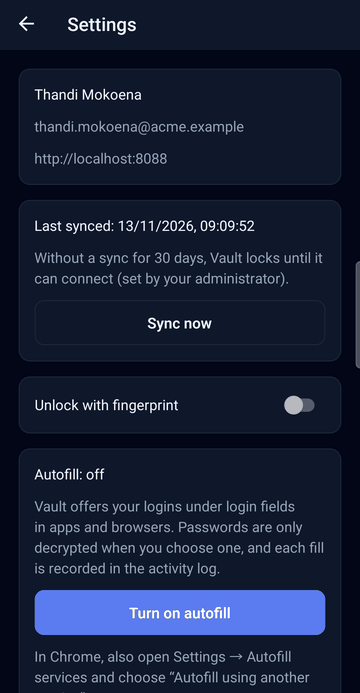
- If the phone hasn't synced for a while (your administrator sets how long; usually 30 days), Vault locks until it can connect, so a lost phone doesn't keep working forever. Connect to the internet and tap Sync now.
- Views and copies made offline are added to the activity log at the next sync.
Finding passwords
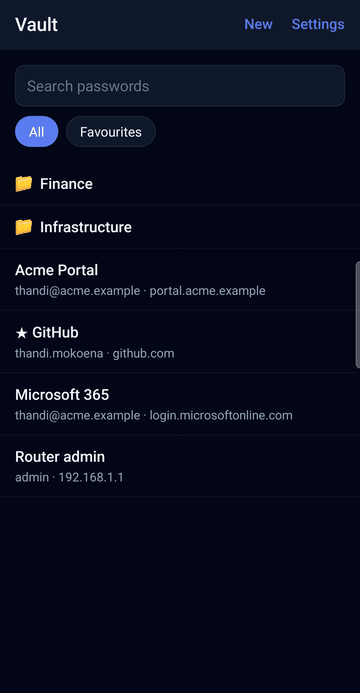
- Search at the top looks in names, usernames, URLs and banks.
- All and Favourites switch between everything and your favourites.
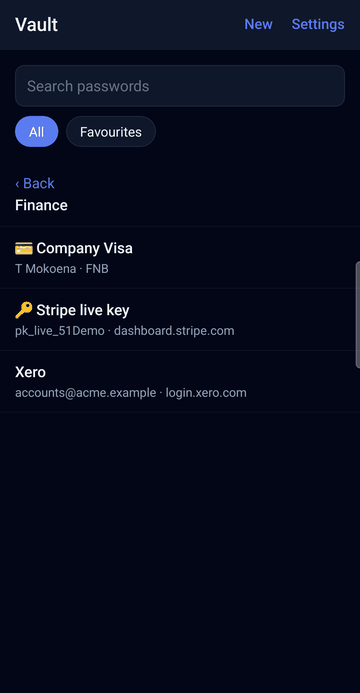
- Password groups show as 📁 folders; tap one to open it and ‹ Back to go up.
- Email accounts are marked ✉️, API keys 🔑 and cards 💳.
- Pull down to sync.
Viewing and copying
Tap an entry to open it.
- Each secret (password, API key, card number, CVV, PIN) has its own Show and Copy. The expiry date and account number appear once you show anything. Card numbers show as
NNNN NNNN NNNN NNNNand copy as digits only. - Copied secrets are cleared from the clipboard after 30 seconds. Android also hides them from the clipboard preview.
- Open next to a URL opens the website.
- Shown secrets hide themselves again after 30 seconds.
Adding, editing and sharing
These need a connection. Vault first checks the server for changes, then saves straight to the server.
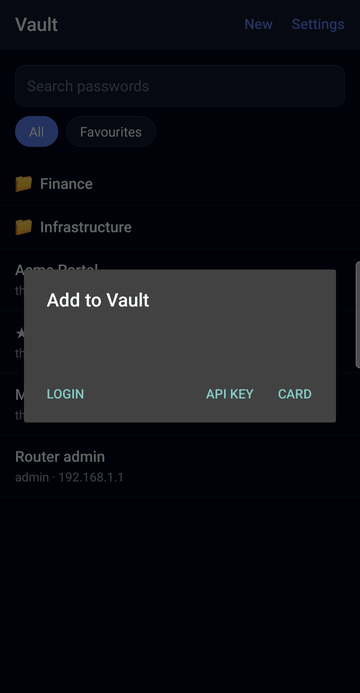
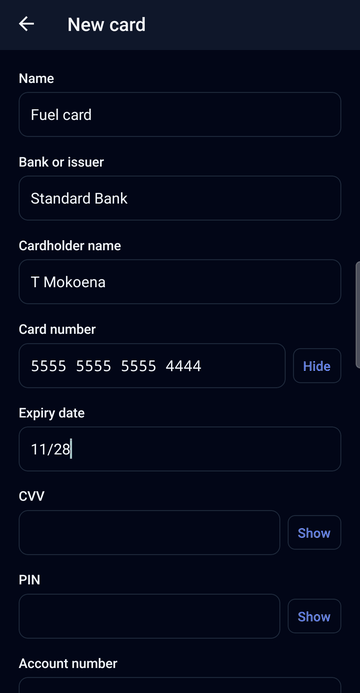
- Add: tap New at the top of the list and choose Login, Email account, API key or Card. Generate creates a strong password. Inside a password group you can edit, new entries go into that group.
- Edit: open the entry and tap Edit (if you can edit it).
- Favourite: ☆ Favourite.
- Share (owners): add people or groups and choose Can read, Can edit or Owner. New people get a copy encrypted with their own key, on your phone.
- Delete (owners): deletes it for everyone it's shared with.
Autofill in apps and browsers
Turning it on
- In Vault, open Settings and tap Turn on autofill. Android shows its autofill service list: choose Vault.
- In Chrome, also open Chrome's Settings → Autofill services and choose Autofill using another service. (Samsung Internet, Firefox and others use Android's setting directly.)
Using it
- On websites in a known browser (Chrome, Samsung Internet, Firefox, Edge, Brave and others), tap the username or password field: the logins saved for that website appear under it. Tap one to fill.
- In apps, Vault offers Choose a login from Vault. It shows which app is asking, suggests likely logins, and you choose. Only choose a login that belongs to that app.
- When Vault is locked, the suggestion is Unlock Vault: unlock with your fingerprint or passphrase, then choose a login.
- Only logins and email accounts are filled, never API keys or cards.
Saving logins from autofill
When you sign in somewhere with a password Vault doesn't have, Android offers Save to Vault? after you submit the form. Tap Save: Vault opens with the website or app and what you typed filled in. Check the name and tap Save. If you already have a login for that username, Vault offers to update its password instead. Saving needs a connection.
Updating the app
Vault checks for a new version after it syncs. When there is one, the list shows Vault … is available. Tap to install.
- On a Samsung phone, turn off Auto Blocker.
- Open Settings → App updates and tap Install (or Check for updates first).
- The first time, Android asks to allow Vault to install apps: allow it, go back and tap Install again.
- Confirm in Android's installer. Your setup and passwords stay as they are.
- Turn Auto Blocker back on.
Vault checks the download before installing it, and Android only installs an update signed by your organisation.
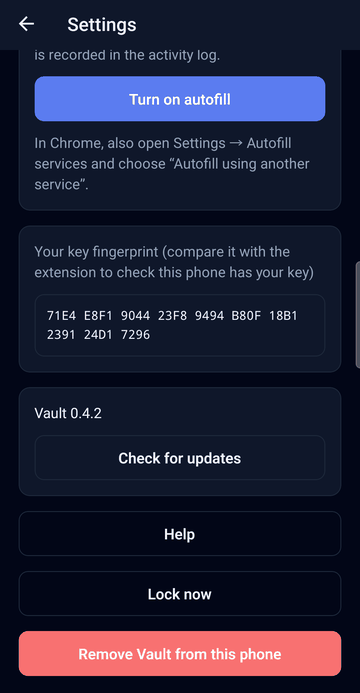
Settings
- Account: your name, email and server.
- Last synced, with Sync now, and how long Vault works without a sync.
- Unlock with fingerprint.
- Autofill: on or off, and Turn on autofill.
- App updates: your version, and new ones.
- Your key fingerprint, to compare with the extension's (Your account → Your key fingerprint).
- Help opens this page.
- Lock now and Remove Vault from this phone.
Lost or new phone
- Lost phone: in the extension, open Your account → Phones and tap Remove next to it (or ask your administrator). It can't sign in any more, and Vault deletes everything on it as soon as it connects. Without a connection it still locks after the offline limit, and only your passphrase opens it.
- New phone: install Vault and set it up with a new QR code. Remove the old phone from the list.
- Giving a phone away: Settings → Remove Vault from this phone, then uninstall the app.
- If a phone shows Vault was removed, it was removed from your account (or your account was disabled). Tap Set up again if that was a mistake.
Forgot your passphrase
- On the unlock screen, tap Forgot your passphrase? and confirm Remove from phone. (Your passwords are safe on the server.)
- On Set up Vault on this phone, tap Recover my account, enter the server address and your email, and tap Send recovery email.
- Paste the recovery link from the email (I already have a recovery link if you have it already), and check the server key fingerprint.
- Choose a new passphrase and tap Ask for recovery. Read the code on screen to your administrator, who approves the request.
- Keep the screen open: once approved, Vault finishes setting up with your new passphrase.
Each device keeps its own copy of your key, protected by the passphrase it was set up with. The new passphrase is for this phone; the extension still uses the old one. If you've forgotten that too, use Forgot your passphrase? in the extension as well.
Troubleshooting
- “Could not reach the server.”
- Check the phone's connection and the server address. Your passwords still work offline.
- Installing is blocked.
- On Samsung, turn off Auto Blocker. Otherwise allow your browser (or Vault, for updates) to install apps when Android asks.
- No Vault suggestions under login fields.
- Check that Vault is the autofill service (Settings → Autofill: on), and in Chrome that Autofill using another service is chosen. Suggestions under the field only appear for websites in known browsers; in apps use Choose a login from Vault.
- The list says the server wants a two-factor code.
- Tap the banner and enter the code from your authenticator app. Your passwords stay usable meanwhile.
- Vault says it hasn't synced for too long.
- Connect to the internet and tap Sync now. The same happens if the phone's clock was set back.
- A login doesn't appear under login fields, though it matches.
- Vault only fills logins whose details are signed. Older ones are signed when someone who can edit them opens Vault in Chrome; sync afterwards. You can still copy them.
- Fingerprint unlock stopped working.
- Adding a fingerprint or face to the phone turns it off. Unlock with your passphrase and turn it on again in Settings.